 Cardboard Manager
Guide
How to use Cardboard Manager
Step by step, from your first card to counting the cash box after a show. Words in green are the buttons and fields you'll see in the app.
Getting set up
- On your phone, open app.cardboardmanager.com and sign in.
- Put it on your home screen so it opens like an app. In Safari on iPhone, tap the Share button, then Add to Home Screen. In Chrome on Android, open the menu and tap Add to home screen.
- The first time you scan, your phone asks to use the camera. Tap Allow.
- For labels, pick up Avery 8195 sheets (1¾″ × ⅔″, 60 labels per sheet).
The app works the same on a computer, which is handy for adding a big stack of cards or printing labels.
Add a card
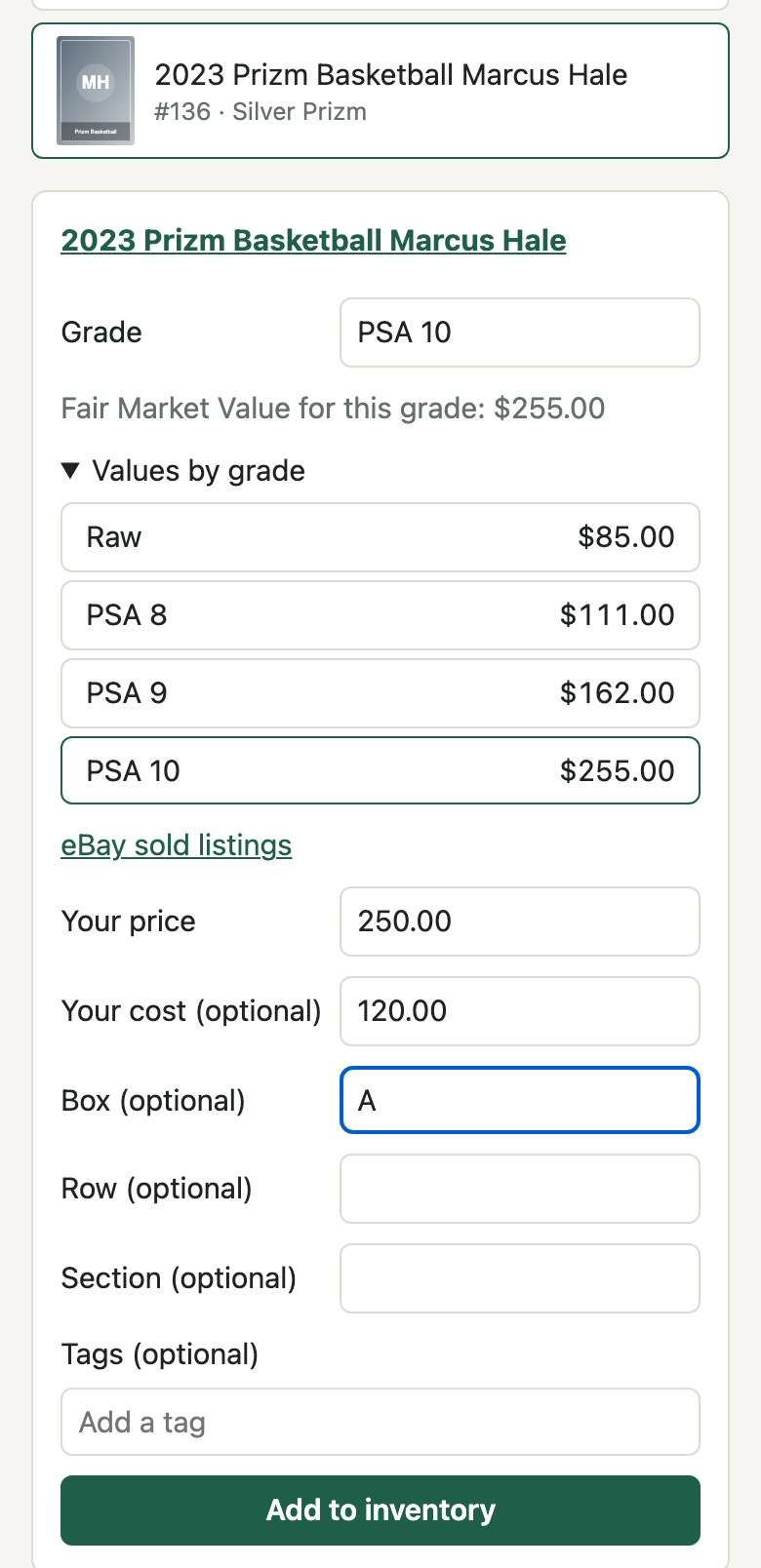
- Open the Add card tab.
-
Find the card one of two ways:
- Type what you know, like 2011 Topps Update Mike Trout, and tap Search.
- Or tap Photo and take a picture of the card. It's identified for you, and other close matches are listed underneath in case it picked the wrong one.
- Tap the right card in the results.
- Open Values by grade and tap the grade you have. That sets the Grade and fills in the card's market value.
- Enter Your price (what you're asking), and Your cost if you know it, so the app can work out your profit.
- Optionally, fill in Box, Row and Section so you can find it later.
- Tap Add to inventory. The card gets its own code, like
CM-7K3QX9, and is ready for a label.
In a hurry? Use Quick add
Search for anything, then choose Quick add: jot down a card. Type a note you'll recognize later (say, Wemby Prizm silver), what you Paid, and an asking price if you have one. Later, find it in Inventory under Needs details (quick-added), open it and tap Identify this card.
Print labels
Do this on a computer if you can. It's easier to load the label sheets.
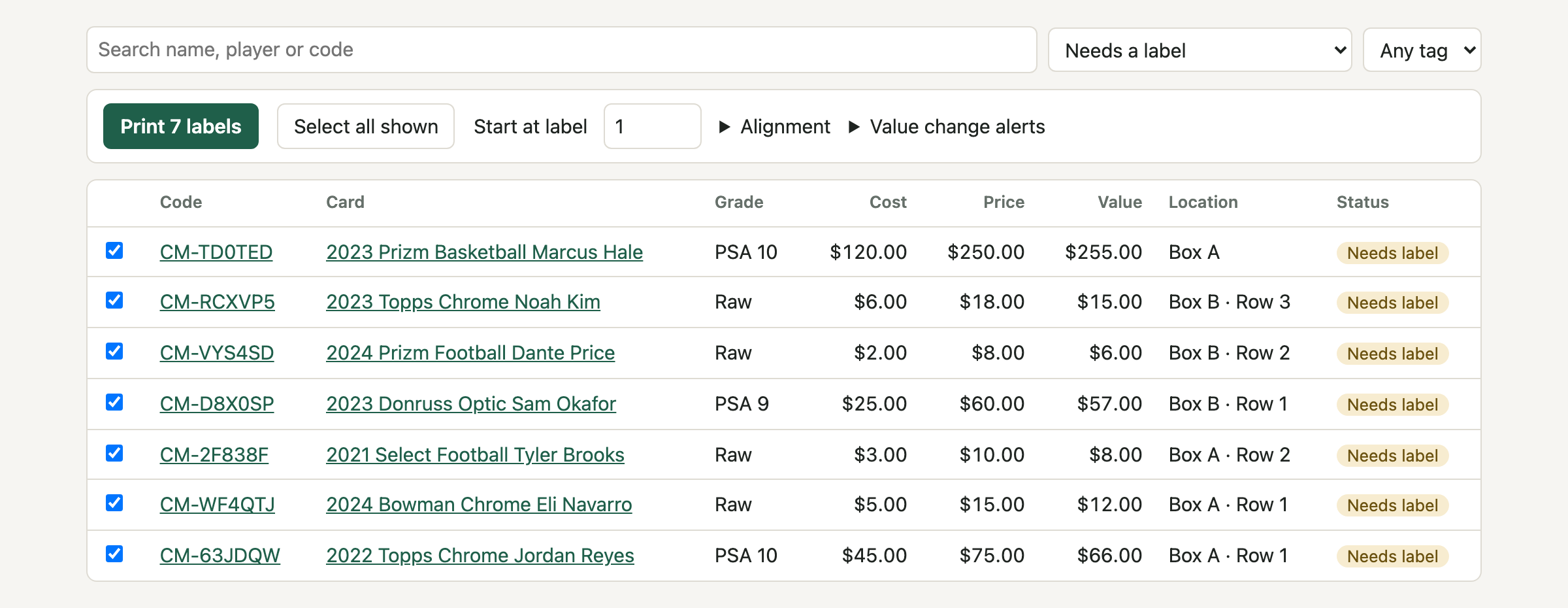
- Open the Inventory tab and set the status filter to Needs a label.
- Tick the cards you want, or tap Select all shown.
- If you've already used part of a sheet, set Start at label to the first empty spot. Labels count left to right, top to bottom, starting at 1.
- Tap Print labels. A PDF opens.
- Print it at 100% or Actual size, not "Fit to page".
- Stick each label on the card's sleeve, top loader or slab.
First time? Check the alignment
Open Alignment and tap Print test sheet. Print it on plain paper and hold it against a label sheet up to the light. If the boxes are off, nudge them with Right and Down (in inches) and print another test. The app remembers your settings.
Scan a card
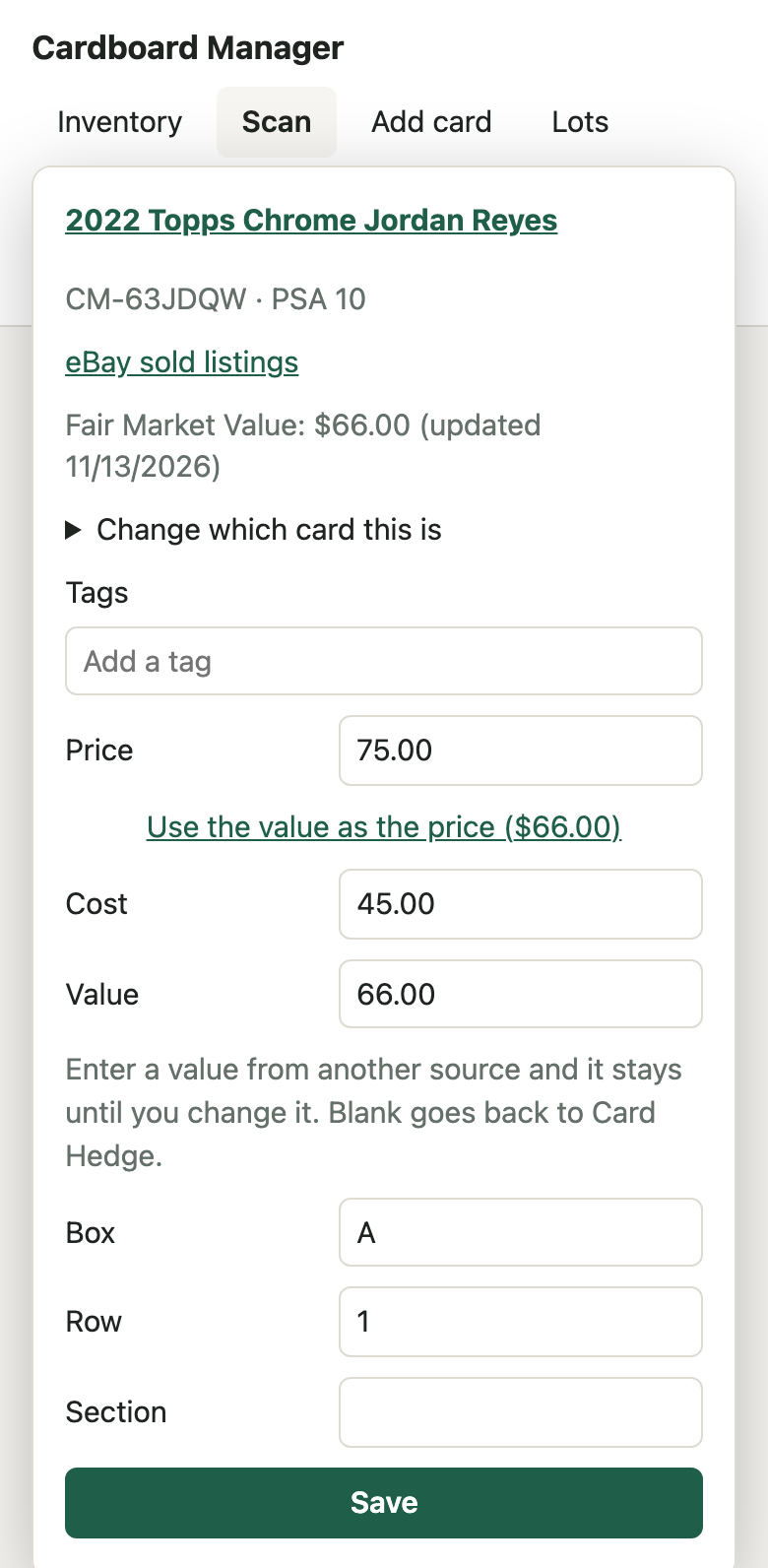
- Open the Scan tab.
- Point your phone at the card's label. Hold it about 6 inches away, close enough for the label to look sharp. The card opens as soon as it's read.
-
From there you can:
- Change the Price, or tap Use the value as the price, then Save.
- Update its Box, Row, Section or tags.
- Sell it on its own: enter the Sold price and tap Mark as sold.
- Tap eBay sold listings to check recent sales.
- Close the card and point at the next one. The camera stays on.
If a label won't read, type the code printed on it into the box under the camera and tap Look up.
Sell several cards at once
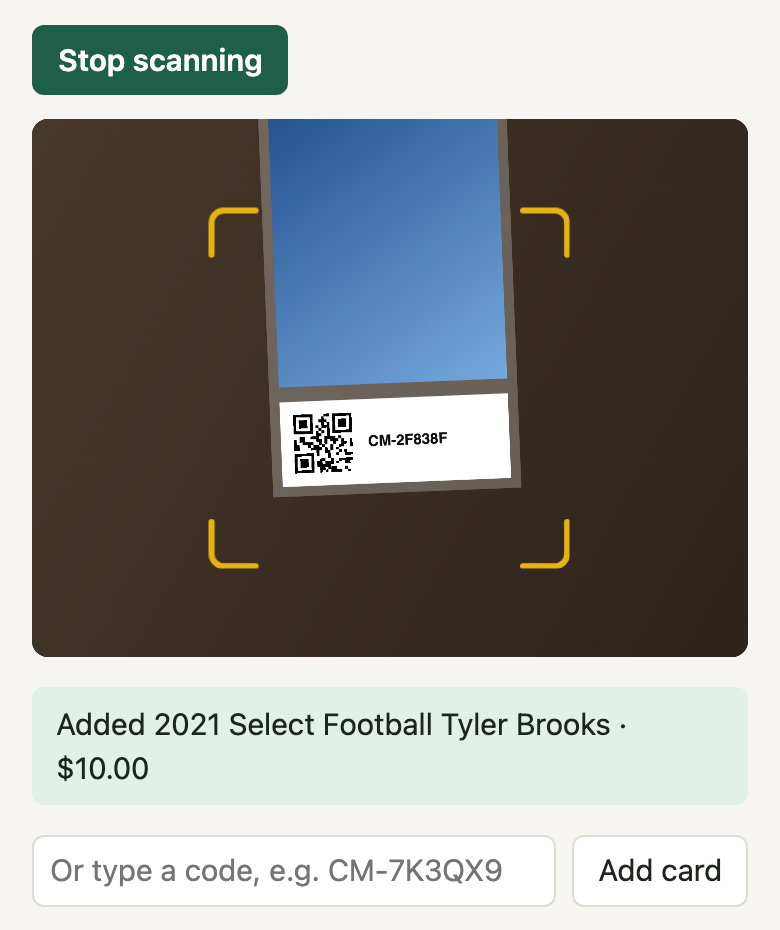
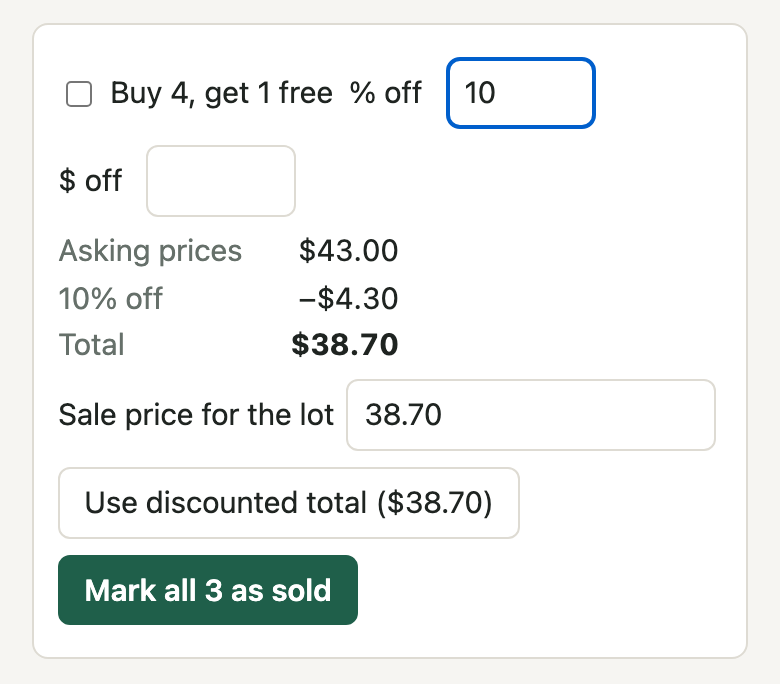
For when a customer brings you a stack.
- Open Lots and tap New sell lot.
- Tap Scan labels and scan each card. The picture flashes when a card is added, and the lot's total updates as you go.
- Apply a deal if you're giving one: tick Buy 4, get 1 free, or enter a % off or $ off. The breakdown shows what each discount takes off.
- Tap Use asking total (or Use discounted total once there's a deal), or type whatever price you agreed into Sale price for the lot.
- Tap Mark all as sold. The sale price is split across the cards by their value, so each one's profit is right.
Scanned the wrong card? Tap Remove next to it before you mark the lot sold.
Buy cards
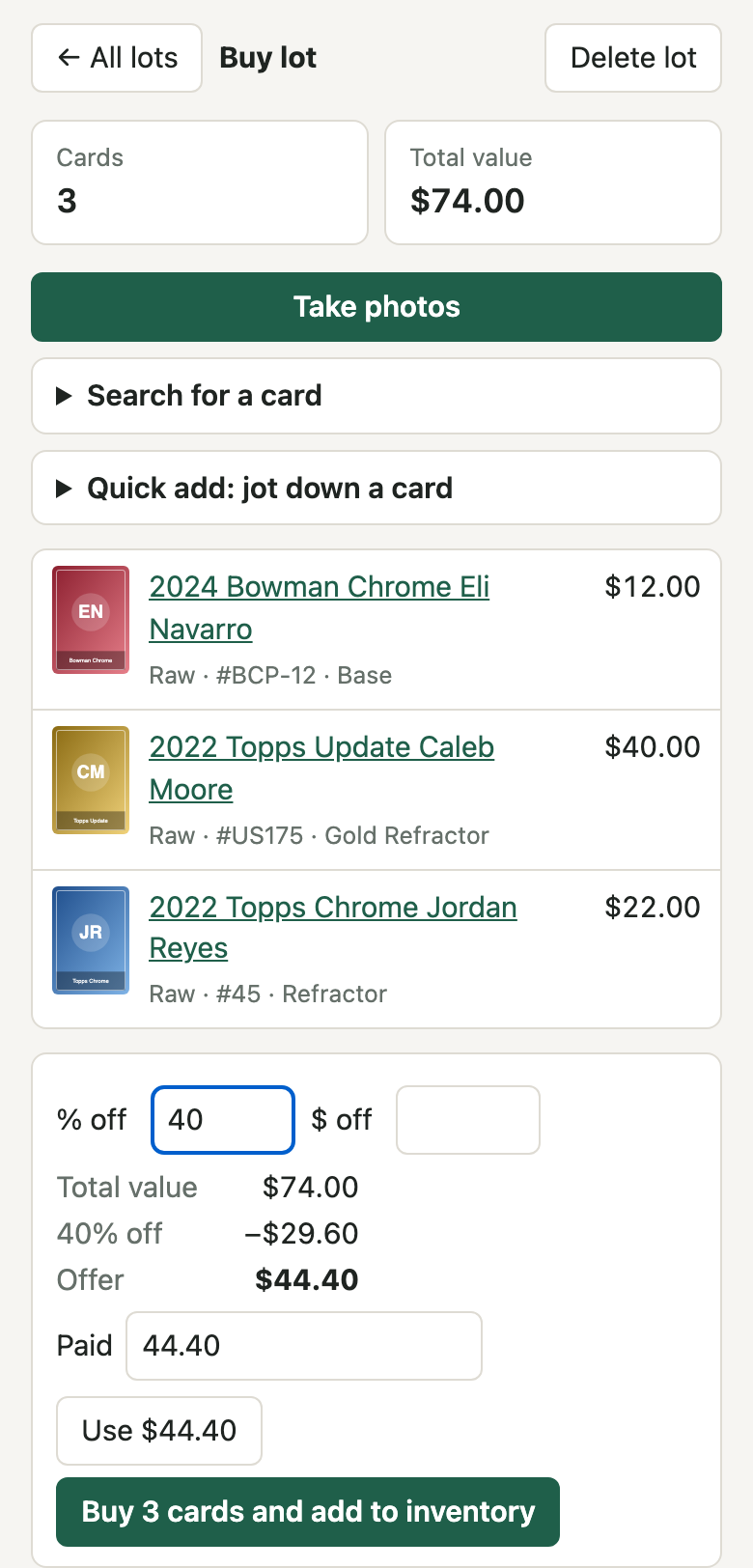
For when someone offers you cards, one or a whole box.
- Open Lots and tap New buy lot.
- Tap Take photos and photograph each card. You can pick several photos at once. Each one is identified and its value filled in.
- Check the list. Tap a card to change its grade, enter a value yourself, or pick a different match. If a card wasn't recognized, tap Search for a card or use Quick add: jot down a card.
- To work out an offer, enter a % off or $ off the total value.
- Enter what you actually Paid.
- Tap Buy cards and add to inventory. What you paid is split across the cards by value, so each has a cost. They're priced at their value, ready to adjust.
- Print their labels from Inventory (they'll show under Needs a label).
Make a trade
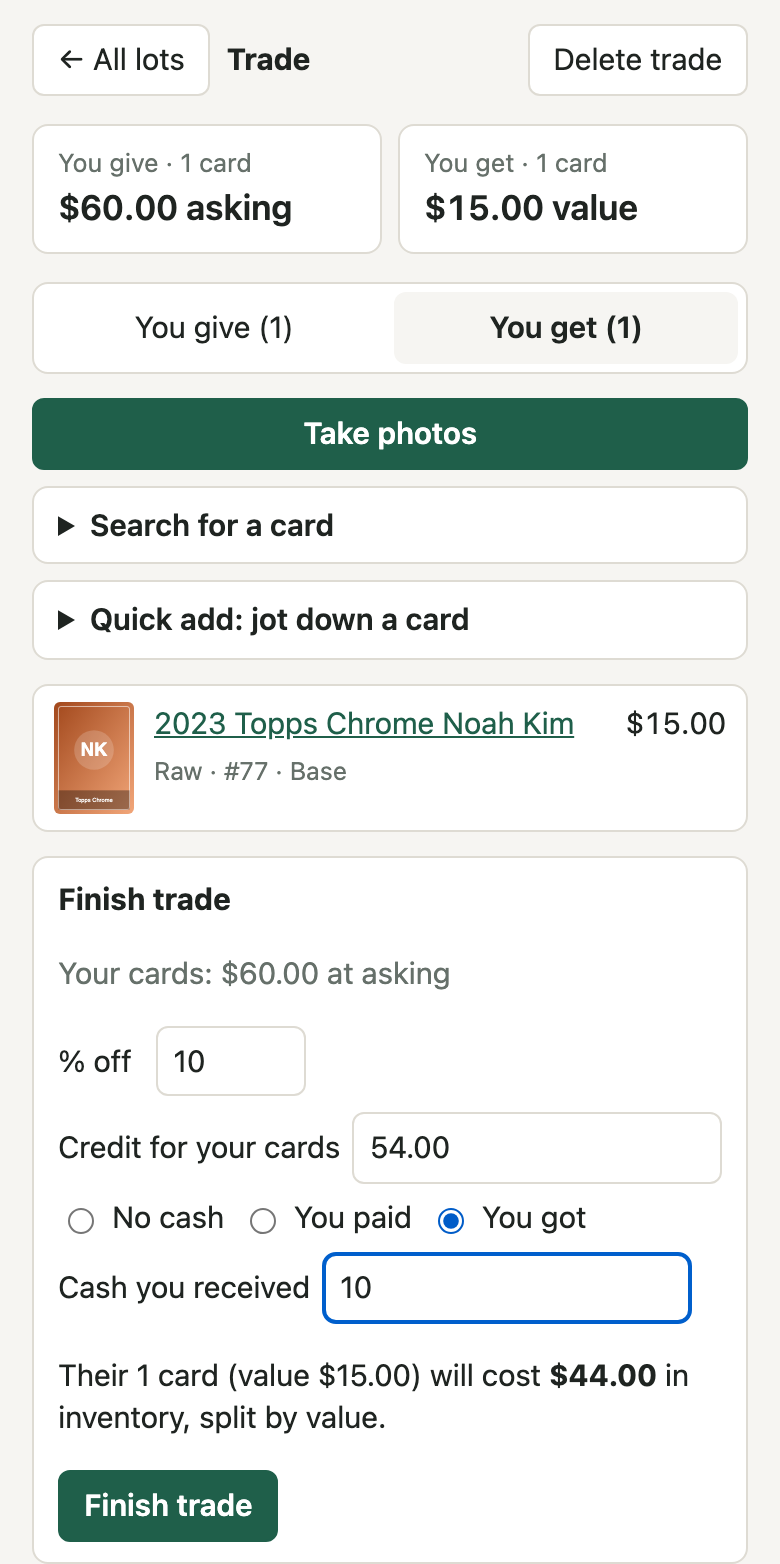
- Open Lots and tap New trade.
- On the You give tab, tap Scan labels and scan your cards that are going out.
- On the You get tab, tap Take photos and photograph the cards you're getting, just like buying.
- Under Finish trade, set the Credit for your cards. It starts at your asking prices, and a % off lowers it.
- If cash changed hands, choose You paid or You got and enter the amount. Otherwise leave No cash.
- Tap Finish trade. Your cards are marked sold at the credit, and theirs go into inventory, costing the credit, plus any cash you paid or minus any cash you got.
Run a card show
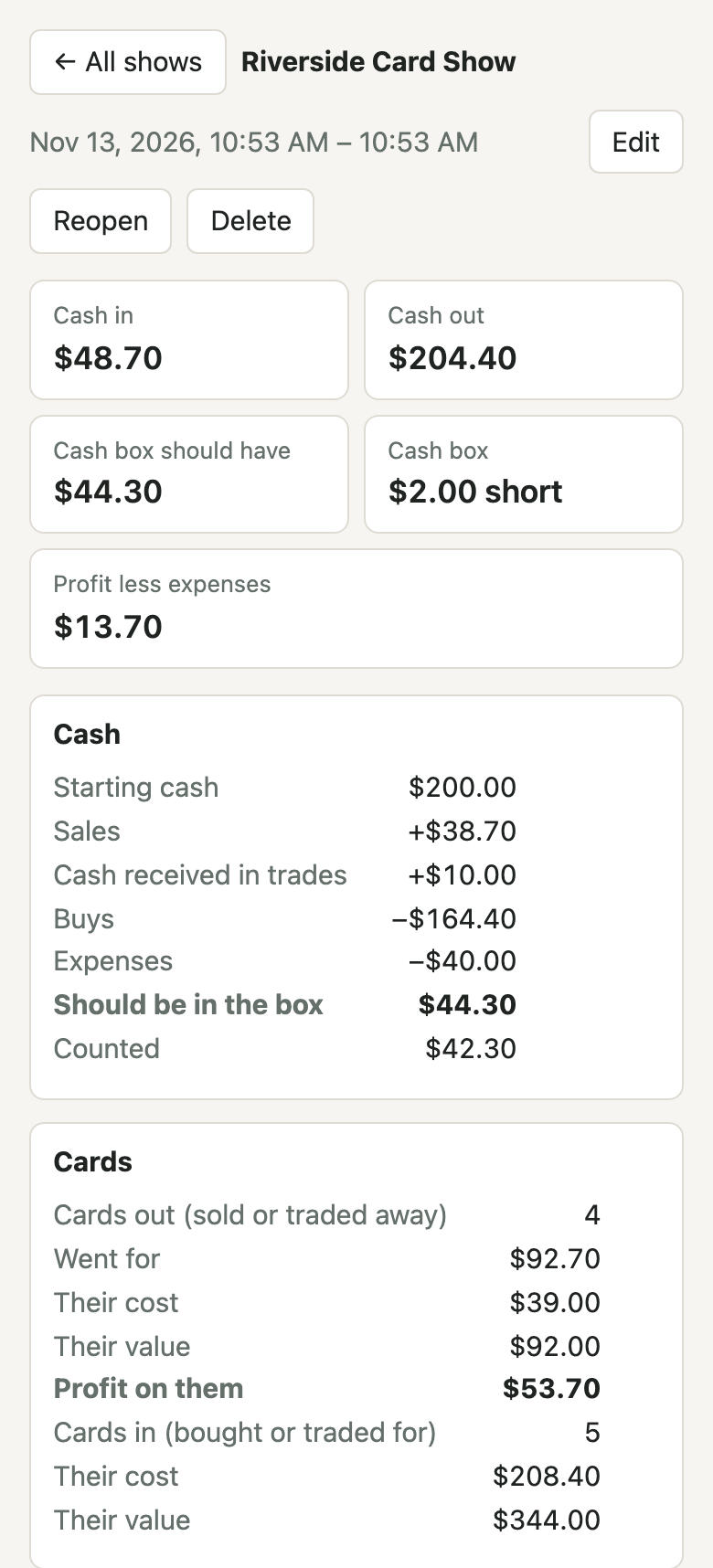
- When you set up your table, open Shows. Enter the show's name and your Starting cash (what's in the cash box), then tap Start show.
- While it's running, the header shows At and the show's name. Every sale, buy and trade from now on counts toward the show. Tap that header button at any time to see how the day is going.
- Record costs like the table fee, parking or food under Expenses, then tap Add expense.
- At the end of the day, count the cash box, enter it as Cash counted and tap End show.
- The report shows cash in and out, what the box should hold and whether you're over or short, the cards that went out and came in, your expenses and your net for the show.
Forgot to end it? A show ends on its own 72 hours after it starts, so later sales aren't counted toward it. You can still enter the counted cash afterwards with Edit. Ended it too early? Open the show and tap Reopen (within those 72 hours). Past shows are listed on the Shows tab.
Keep values current
- Market values for everything in stock refresh every night on their own. You don't need to do anything.
- To get a heads-up when a card's value moves, open Inventory and set up Value change alerts, for example 20% and at least $5.
- Cards that have moved show under the Value changed filter. Scan or open one, update its price, and print a new label. Printing the new label clears the flag.
- Typed in a value yourself? It stays put until you clear it, so the nightly refresh won't overwrite it.
Tips
- Good light helps. A label in shadow or glare from a top loader is slower to read. Tilt the card slightly to kill the glare.
- Don't get too close. If the label looks blurry on screen, pull the phone back a little until it's sharp.
- Every label has its code printed on it, so you can always type it in if the camera won't cooperate.
- Search your inventory by name, player or code from the Inventory tab, and filter by tag.